Official manual · Verify the App Store listing
Shadowrocket Download from the App Store
Shadowrocket is a paid app sold on the App Store as a one-time purchase. Check your account region, then verify the developer, official icon, and app ID. The price and compatibility details shown on the store page are the definitive reference.
Check your account region before the product page
The button above links to Shadowrocket’s App Store product page. The id932747118 in the URL is the app ID and can help you verify the listing. What you see after opening the link also depends on the country or region of your Apple ID. The link points to the US storefront, but not every account will see the same purchase page. If the store says the item is unavailable, check your account region instead of relying only on the name in search results.
Shadowrocket is not available on the mainland China App Store. To check your account region, go to Settings → Apple ID → Media & Purchases → View Account → Country/Region on your device. The menu path may vary depending on how Settings appears on your device; refer to the account details shown there. For information about changing your region, review the instructions and prompts Apple provides on that page. Whether you can change regions depends on your account status; this guide cannot guarantee that a change will be possible.
Before purchasing, check your account region, the developer listed on the product page, and the displayed price. Whether you find the app through search, a shared link, or within the store, verify the same details on the product page. Purchases and payment history are tied to the Apple ID used for the transaction. Keep track of that account so you can find your purchase if you change devices later. If the page has no purchase button or displays an account prompt, follow the information shown by the store. Don’t confuse the device sign-in with the account used for Media & Purchases.
02 / Identify the product page
Verify Shadowrocket with three details
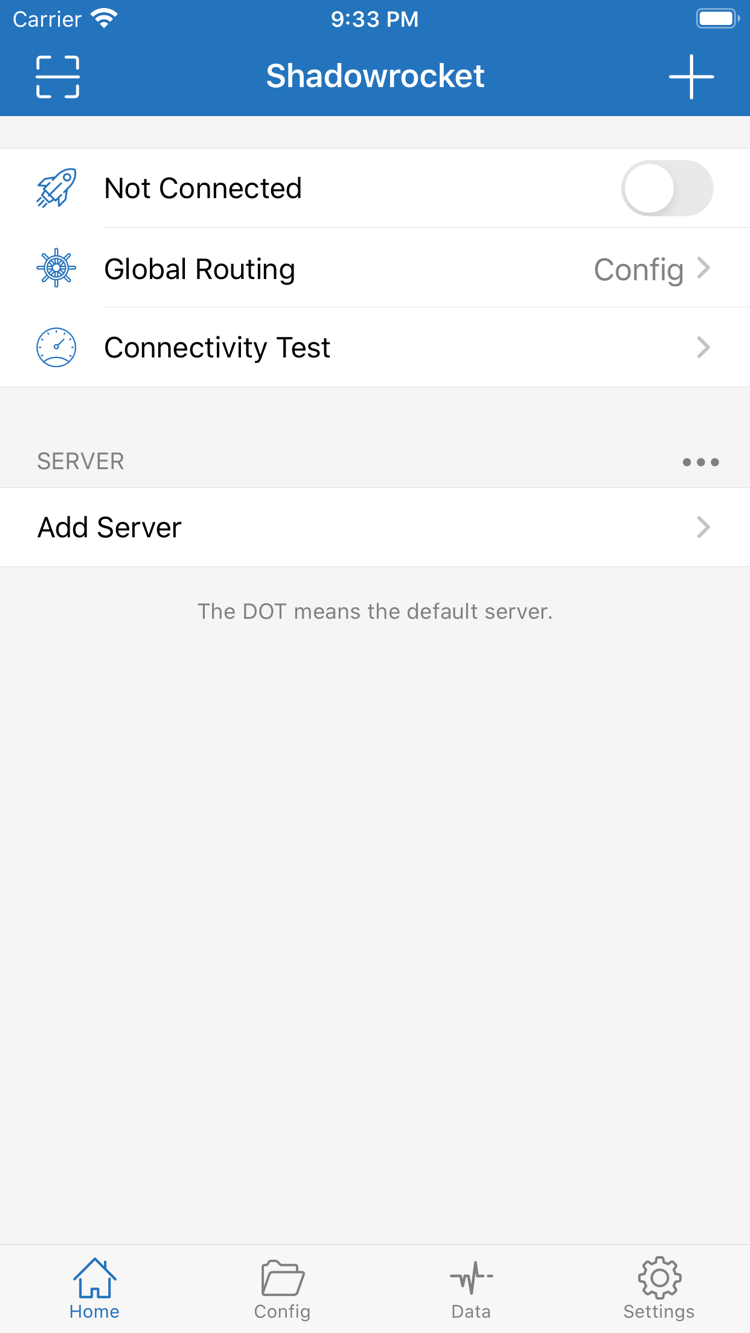
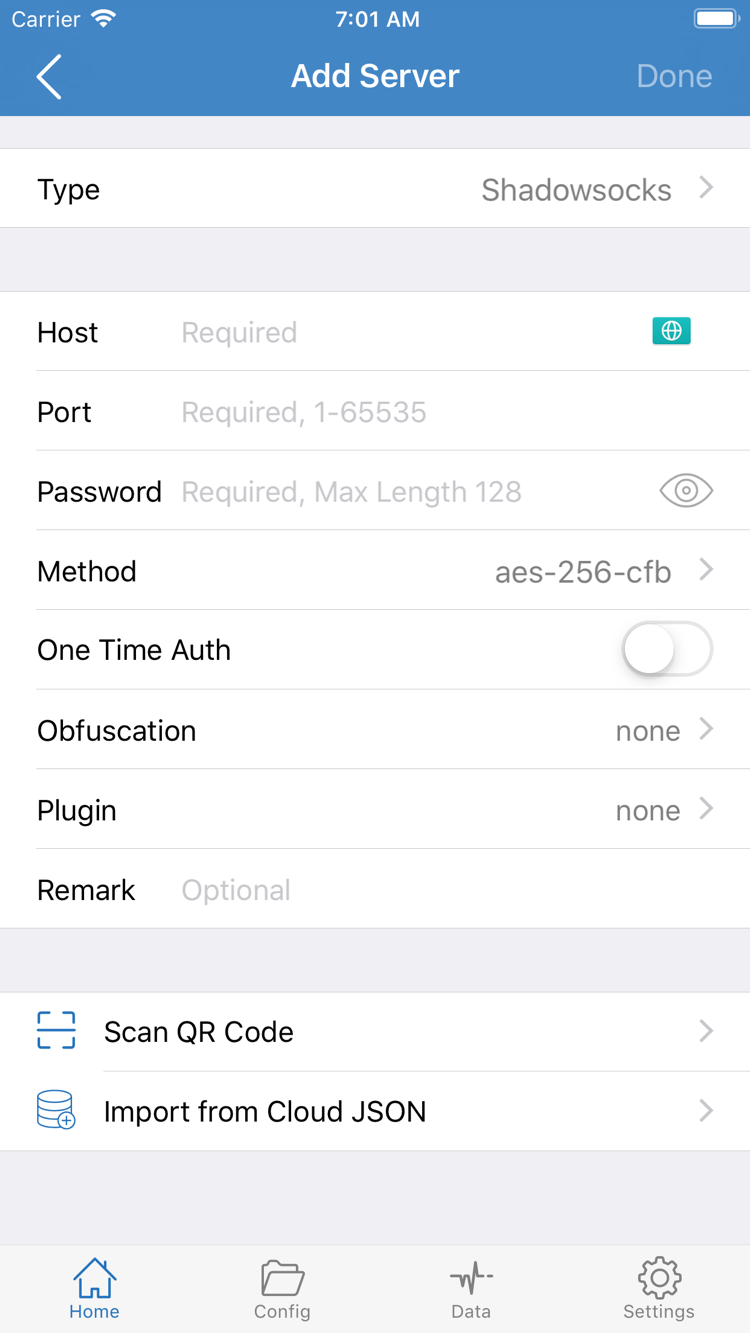
A similar name alone doesn’t confirm that an app is genuine. On the App Store product page, check the developer, icon, and app ID together. The two images below are interface screenshots submitted by the developer to the App Store. They can help you identify the app, but the product page details are what count.
The developer should be listed as Shadow Launch Technology Limited. Open the full product page and check the developer field; don’t rely only on the app name shown in search results.
Look for the rocket icon on a white background with a blue-purple outline, as shown on the store page. The icon used on this site matches the official product page icon. Use it to help identify the app, and verify the developer name as well.
The product page URL should end in id932747118, and the app ID is 932747118. If the address or developer details don’t match after opening a search result, return to the store and verify the listing.
After checking all three details, review the product page’s compatibility, price, and purchase button. App Store search may show similarly named items, so don’t decide based only on the icon color or a shortened name. In-app screens can also vary with the displayed content and device size. Screenshots can help you locate Home and Add Server, but they aren’t a reliable source for current prices, system requirements, or purchase status. Check those details on the App Store product page.
The Home screenshot shows Not Connected, Global Routing, Connectivity Test, and the SERVER group. The Add Server screenshot shows fields such as Type, Host, Port, Password, and Method, with Scan QR Code and Import from Cloud JSON at the bottom. These are the English interface labels shown in the screenshots; refer to what appears on your device when using the app. Verify the app before installing and opening it for the first time to keep app identification and setup as two separate steps.
03 / Device guide
iPhone: Purchase and first launch
On your iPhone, open the App Store product page with the Apple ID you plan to use for the purchase. Verify the developer and app ID, then review the price and compatibility requirements shown for that storefront. Refer to the App Store listing for system requirements; don’t assume details shown for another device or region apply to your iPhone. After purchasing, download Shadowrocket from the product page and open it. The purchase will be available for restoration later through the same account.
The first time you turn on the connection in the app, your iPhone may ask for permission to add a VPN configuration. This system prompt allows the app to create the relevant network configuration. Confirm that the prompt is for Shadowrocket installed from the store, then follow the on-screen instructions. If you’re just getting familiar with the interface, you can look for Home, Global Routing, and Add Server without entering server details before you have your own configuration ready.
Buying the app does not automatically provide a working connection. Importing information requires a subscription or server details that you already have. To add details manually, use fields such as Type, Host, and Port in Add Server. If you already have a subscription, import it through the corresponding in-app option. Then select a configuration and check the connection status. If there are no server entries the first time you open the app, check whether you’ve imported your own details; an empty list doesn’t mean the purchase failed. For more interface steps, see the setup guide.
If the store page opens but the download won’t complete, check the account used for Media & Purchases, device compatibility on the product page, any payment or account prompts from the store, and your device’s network connection. Don’t use the app’s connection status to judge the App Store transaction; those involve separate parts of the process. Always refer to the current App Store listing for minimum system requirements.
04 / Device guide
iPad: Find the same purchase
If you bought Shadowrocket on your iPhone and want to use it on your iPad, first make sure the iPad’s App Store is signed in with the same Apple ID used for the purchase. Open the same product page, verify the developer and app ID, and check whether the store shows that you’ve purchased the app. Your iPhone and iPad can use the same account’s purchase history. Don’t pay again just because you’re using an iPad. Refer to the App Store listing for your iPad’s system requirements.
The wider iPad screen may arrange lists and details differently from the iPhone, but English interface labels such as Home, Global Routing, and Add Server can help you find your way. Don’t rely on the pixel position of a button in a screenshot. Look for the section name, then find the corresponding option on your device. If you configured the app on your iPhone, don’t assume your server details will appear automatically with the purchase. After opening the app on iPad, check whether you need to import your own subscription or server details again.
If the iPad still shows a purchase button, pause and check whether the account used for Media & Purchases matches the one that made the original purchase. Then look under purchased items. Your App Store account, device sign-in, and in-app configuration are separate. Purchased items show your purchase history; the in-app SERVER list shows whether you have configurations available to select. Checking both separately helps distinguish an account issue from an import issue.
05 / New device and reinstall
Restore your App Store purchase
Find your purchase history first, then check your in-app configuration. Restoring a purchase confirms the app’s purchase status; server details must be checked separately.
Confirm the original purchasing account
On your new device, check which Apple ID is used for Media & Purchases in the App Store. Purchase history is linked to the account used for payment. If the device is currently signed in with another account, the original purchase may not appear in your purchased items. Confirm the account before troubleshooting further.
Open purchased items
Go to App Store → Account → Purchased, find Shadowrocket, and verify the developer, Shadow Launch Technology Limited, and app ID, 932747118, on the product page. Download it again from the purchase history for the same Apple ID; you won’t be charged again for the same purchase. Menu names may vary by device.
Check your configuration again
After opening the app, check Home for the configurations you need. Restoring a purchase restores your entitlement to the app; it doesn’t restore or include in-app subscription or server details. If the list is empty, import your own original details again. If entries are present, check that they’re still valid before testing the connection.
The system authorization prompt may appear again after reinstalling. Follow the prompt shown on your device. If you can’t find the app in your purchased items, check the original purchasing account, its region, and product page compatibility one by one. Don’t pay again before confirming the original account. For connection issues after importing, see the troubleshooting guide.
06 / What the price covers
One-time purchase and actual use
The App Store payment covers the app. How you use it afterward depends on configuration details you already have.
Shadowrocket is a one-time purchase, with no monthly fee to buy the app. The US App Store lists a reference price of $2.99. Other storefronts display their actual prices in local currency; always check the current App Store product page before purchasing. Verify the developer and app ID along with the price so you don’t start a purchase based only on a similar name. The store page also shows device compatibility and system requirements; refer to the current listing for both.
Buying the app does not buy a connection plan. Purchasing Shadowrocket gives you the app itself; it doesn’t automatically provide a subscription or server details. This site does not provide, sell, or recommend nodes or subscriptions. The setup instructions are for users who already have their own subscription or server details. Distinguishing the app’s store price from your own network configuration can help prevent mistaking an empty SERVER list for a problem with the App Store transaction.
If you’ve already purchased the app and are switching devices, follow the purchase restoration steps on this page and check the original purchasing account first. To use Shadowrocket on iPad, check purchase history and device compatibility under the same account. For Mac, Apple TV, and Apple Vision support and whether the same purchase applies, refer to the App Store listing. Don’t use the US reference price to estimate what another storefront will charge, or assume that one device’s purchase status applies to every account.
After purchasing, keep these details handy for future reference: the app is Shadowrocket, the developer is Shadow Launch Technology Limited, and the app ID is 932747118. Check the App Store for updates and redownloads. If the app’s connection isn’t working, first check separately whether you’ve imported a configuration, enabled the connection toggle, and selected the appropriate Global Routing mode. Checking the purchase, installation, and configuration separately makes troubleshooting more precise.
Purchases and devices / Quick answers
Common questions before and after downloading
Use the answers below to identify what to check next. Always refer to the current App Store listing for prices, account status, and system requirements.
Why can’t I find Shadowrocket on the App Store?
First, check the country or region of the Apple ID used for Media & Purchases. Shadowrocket is not available on the mainland China App Store, and listings may vary by account region. The product page linked here is for the US storefront; whether you can view or purchase the app depends on your account and storefront. You can also check that the product page URL ends with app ID 932747118 instead of searching by name alone.
What if the product page opens but the app won’t download?
Check your account region, the payment status and device compatibility shown on the product page, then check your network connection and App Store sign-in. Refer to the App Store listing for system requirements. For payment or account issues, follow the store’s prompts. If you’ve already purchased the app, check your purchased items before trying to pay again.
Do I have to pay again when I get a new iPhone?
On the App Store, sign in with the same Apple ID used for the original purchase. Find Shadowrocket under your account’s purchased items and download it again from the product page. If you see a purchase prompt, check that the account used for Media & Purchases is the original purchasing account. After installing the app, check whether you need to import your own configuration again.
Can I use Shadowrocket on iPad if I bought it on iPhone?
Your iPhone and iPad can use the same Apple ID purchase history. On your iPad, sign in to the App Store with the purchasing account, check the product page and compatibility details, then download the app from your purchased items or the product page. Refer to the App Store listing for system requirements. The in-app layout may differ between iPad and iPhone.
Where can I get Shadowrocket for Mac or Apple TV?
Use the same App Store product page. Its compatibility section lists Mac, Apple TV, and Apple Vision. Check the App Store listing for supported devices, system requirements, and whether the same purchase applies. Review the information shown in the store on the relevant device.
The app interface is in English. How do I follow this guide?
This guide uses the original English names of in-app interface items, including Home, Global Routing, and Add Server. Verify the app using the product page icon and app ID, then look for these labels in the app. The current app interface takes precedence. To continue setup, start with the Home steps in the setup guide.